All posts by Wes

Setting Up SMTP Relay Using Postfix and MSMTP

1. Overview

This guide documents how I configured a Linux-based SMTP relay server to allow office copiers to send email securely through Gmail. The project solved the challenge of devices that do not support OAuth2 authentication, enabling them to send authenticated email while complying with Gmail’s security requirements.

This SMTP relay solution:

  • Authenticates outbound email via Gmail using OAuth2

  • Restricts relay access to specific copier subnets

  • Automates token management to avoid manual intervention

The relay acts as a secure bridge between legacy hardware (that can’t support modern authentication) and Gmail’s stricter authentication requirements.


2. Assumptions

This solution was designed under the following assumptions:

  • The organization uses Gmail or Google Workspace as its email provider.

  • Copiers and scanners on the network do not support OAuth2 authentication for SMTP.

  • A dedicated Linux server or virtual machine was available to serve as the SMTP relay, running Ubuntu 22.04 LTS.

  • The copier network is isolated or controlled (e.g., a trusted subnet such as 192.0.2.0/24).

  • A Google Cloud project was created with access to OAuth2 credentials (client ID, client secret) and a refresh token.

  • The relay would only send outbound email (no need to receive inbound mail).

  • All outbound email must be authenticated and delivered via Gmail’s SMTP servers.


3. Objectives

The primary goals of this project were:

  • Enable copiers without OAuth2 support to send email through Gmail

  • Create a secure relay server to handle email from trusted copier IPs

  • Authenticate outbound email to Gmail using OAuth2 via msmtp

  • Automate access token handling using a refresh token

  • Restrict relay access to a specific network subnet

  • Provide a maintainable, repeatable process for future devices


4. Technical Setup

This solution was implemented using a combination of Postfix and msmtp on a dedicated Linux virtual machine.

Key components:

Component Purpose
Postfix Accepts SMTP traffic from copiers and relays mail
msmtp Sends authenticated email via Gmail using OAuth2
refresh_token.sh Script to automatically refresh OAuth2 access token
Linux VM (Ubuntu) Hosts the relay server with a static IP address

5. Google Cloud Project Setup 

Since Gmail requires OAuth2 authentication for SMTP access, I needed to create a Google Cloud project to generate OAuth2 credentials and obtain a refresh token for automated authentication.

Steps to set up Google Cloud Project:

  1. Logged into Google Cloud Console.

  2. Created a new project named smtp-relay-project.

  3. Enabled the Gmail API in the project:

    • Navigated to APIs & Services → Library.

    • Searched for “Gmail API” and clicked “Enable”.

  4. Created OAuth2 credentials:

    • APIs & Services → Credentials → Create Credentials → OAuth Client ID.

    • Application Type: Web Application.

    • Gave it a name like smtp-relay-client.

    • Added http://localhost to Authorized Redirect URIs.

  5. Downloaded the client secret JSON file for later use.


6. Generating the Refresh Token

I wrote a Bash script to simplify obtaining the refresh token from Google’s OAuth2 API.

The script generates the authorization URL, prompts the user to paste in the authorization code from Google, and exchanges it for a refresh token.

Here’s the script:

#!/bin/bash

CLIENT_ID=“your-client-id.apps.googleusercontent.com”
CLIENT_SECRET=“your-client-secret”


REDIRECT_URI="http://localhost"


echo “Visit the following URL in your browser to authorize:”

echo "https://accounts.google.com/o/oauth2/v2/auth?scope=https%3A%2F%2Fmail.google.com%2F&access_type=offline&include_granted_scopes=true&response_type=code&client_id=${CLIENT_ID}&redirect_uri=${REDIRECT_URI}"
echo ""
read -p "Enter the authorization code: " AUTH_CODE
RESPONSE=$(curl -s \
--request POST \
--data "code=${AUTH_CODE}&client_id=${CLIENT_ID}&client_secret=${CLIENT_SECRET}&redirect_uri=${REDIRECT_URI}&grant_type=authorization_code" \
https://oauth2.googleapis.com/token)
echo ""
echo "Full response:"
echo "$RESPONSE"
REFRESH_TOKEN=$(echo "$RESPONSE" | jq -r '.refresh_token')
echo ""
echo "Extracted refresh token:"
echo "$REFRESH_TOKEN"

How it works:

  • Outputs an authorization URL.

  • Prompts user to visit the link, log into Google with the account that you want to send the emails from, and paste the returned code.

  • Exchanges the code for a refresh token and prints it.

I ran the script, saved the refresh token output, and used it later in the msmtp configuration.


7. Installing Postfix (Send-Only)

Installed Postfix as a send-only mail transfer agent to accept mail from copiers and hand it off to msmtp for delivery.

sudo apt install postfix

During setup:

  • Selected “Internet Site”.

  • Set mail name to exampledomain.com.

Verified /usr/sbin/sendmail points to Postfix:

ls -l /usr/sbin/sendmail

Confirmed Postfix installed and ready.

8. Installing msmtp

Installed msmtp to act as the authenticated SMTP client to Gmail:

sudo apt install msmtp

9. Configuring msmtp

Created configuration file at /usr/local/etc/msmtprc:

defaults
auth oauthbearer
tls on
tls_trust_file /etc/ssl/certs/ca-certificates.crt
logfile /var/log/msmtp.log
account gmail
host smtp.gmail.com
port 587
from copier@exampledomain.com
user copier@exampledomain.com
passwordeval /usr/local/bin/refresh_token.sh
account default : gmail

This config instructs msmtp to use Gmail SMTP with OAuth2, pulling access tokens from the refresh script.


10. OAuth2 Token Refresh Script

Created /usr/local/bin/refresh_token.sh to automatically fetch a fresh access token using the saved refresh token:

#!/bin/bash
CLIENT_ID="your-client-id.apps.googleusercontent.com"
CLIENT_SECRET="your-client-secret"
REFRESH_TOKEN="your-refresh-token"
TOKEN_URL="https://oauth2.googleapis.com/token"
ACCESS_TOKEN=$(curl -s \
 -d client_id=$CLIENT_ID \
 -d client_secret=$CLIENT_SECRET \
 -d refresh_token=$REFRESH_TOKEN \
 -d grant_type=refresh_token \
 $TOKEN_URL | jq -r '.access_token')
echo "$ACCESS_TOKEN"

Made the script executable:

chmod +x /usr/local/bin/refresh_token.sh
Tested:
/usr/local/bin/refresh_token.sh

Confirmed valid access token output.


11. msmtp Wrapper Script for Postfix

Postfix uses sendmail or a pipe command to send mail, so I created a wrapper to invoke msmtp:

sudo nano /usr/local/bin/msmtp-wrapper

Contents:

#!/bin/bash
exec /usr/bin/msmtp --file=/usr/local/etc/msmtprc -- "$@"

Made executable:

chmod +x /usr/local/bin/msmtp-wrapper

12. Configuring Postfix to Use msmtp 

Once msmtp and the wrapper script were ready, I integrated it with Postfix and secured the relay so that only authorized copier IPs could send mail through it.


Integrating msmtp into Postfix

Edited /etc/postfix/master.cf to add a custom msmtp transport:

msmtp unix - n n - - pipe
flags=F user=postfix argv=/usr/local/bin/msmtp-wrapper -t

This tells Postfix to hand off messages using the wrapper script we wrote.


Edited /etc/postfix/main.cf to activate the new transport:

default_transport = msmtp
relay_transport = msmtp

Reloaded Postfix:

sudo systemctl restart postfix

At this point, mail accepted by Postfix is passed directly to msmtp for authenticated delivery through Gmail.


13. Restricting Access to Copier Subnet

To ensure only authorized copiers could send mail, I updated the Postfix config to allow mail only from a trusted internal subnet.

In /etc/postfix/main.cf, I added:

mynetworks = 127.0.0.0/8, [::1]/128, 192.0.2.0/24
smtpd_recipient_restrictions = permit_mynetworks, reject_unauth_destination
  • mynetworks defines allowed source IPs (copier subnet).

  • smtpd_recipient_restrictions blocks all other relaying attempts.

Reloaded Postfix again:

sudo systemctl restart postfix

This ensures only devices on the copier subnet are allowed to relay messages.

14. Configuring the Copier to Use the SMTP Relay

Once the relay server was configured and secured, I updated the copier’s SMTP settings so it could send scans through the relay.


Copier SMTP Settings

On the copier’s admin interface, I configured the following:

Setting Value
SMTP Server 192.0.2.10
Port 25
SSL/TLS Disabled
Authentication None
Sender Address copier@exampledomain.com

Creating a Big Blue Button Virtual Machine

Assumptions:

  • You have a Linux 20.04 VM that had root enabled and available for login.
  • The VM is able to have the minimum specs required for Big Blue Button.

Prerequisites:

  1. You have an email available to use for Big Blue Button
  2. You have a subdomain available to use for Big Blue Button

1.1 Starting Off

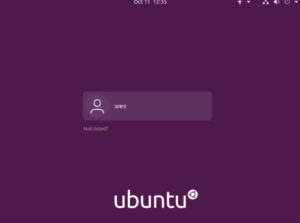
  • Log in with root by hitting the not listed icon and inserting root in the username field then enter the password. After logging in, you will want to navigate to the following website: https://docs.bigbluebutton.org/administration/install/
  • (Note: The following steps are optional, however, every time that something went wrong with the installation I had not done these.) You will want to do the following pre-installation steps to check the requirements:
    • In terminal, use the following commands:
      • cat /etc/default/locale
      • systemctl show-environment
      • free -h
      • uname -m
      • ip addr |grep inet6
      • uname -r
      • grep -c ^processor /proc/cpuinfo
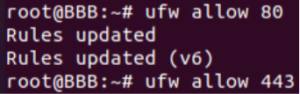
      • ufw allow 80
      • ufw allow 443                             
    • The responses you should get are as follows:
      • LANG=”en_US.UTF-8″
      • LANG=”en_US.UTF-8″ PATH=/usr/local/sbin:/usr/local/bin:/usr/sbin:/usr/bin:/sbin:/bin
      • total used free shared buff/cache available
        Mem: 15G 3.1G 1.0G 305M 11G 12G
        Swap: 0B 0B 0B
      • X86_64
      • inet6 :: 1/128 scope host
      • 5.4.x-xx-generic (Note mine did not exactly match this and it still worked.)
      • 8

1.2 Installation

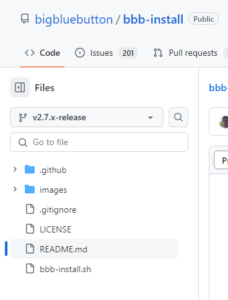
  1. Download the script from the following website: https://github.com/bigbluebutton/bbb-install/blob/v2.7.x-release/bbb-install.sh
  2. Enter cd ~/Downloads into terminal. (This changes the active directory to the Downloads folder)
  3. Next, you want to make the script executable use this command: chmod +x bbb-install.sh
  4. This command runs the script: ./bbb-install.sh
  5. You should see a bunch of information regarding the script pop up.
  6. We are then going to navigate back to the website that you downloaded the script from and go to the page titled “READ ME”                     
  7. Located in the README document is the command for installing Big Blue Button, along with Greenlight. Scroll down until you see the heading titled “Installing on a Private Network”.
  8. Right above that heading, there is a command that is available to copy, copy this command and paste it into terminal.
  9. Once pasted, delete the “[options]” part and instead put in “-g”. This is to install greenlight along with Big Blue Button. You will also need to enter that email and domain that I mentioned earlier. 
  10. Once pasted, click enter and it will run the command, it will take a little while to install everything.
  11. Once done, you should see a link to the domain that you entered into the command, click on it and if you see the following screen, you have successfully installed Big Blue Button.
  12. If using with Moodle, you will need to obtain the “Secret” along with the domain. You will obtain both of these using the following command: bbb-conf –secret.

2TB M.2 PCI Drive-Samsung 980 Pro Review


This SSD is a huge step in the advancement of hard drives. It is extremely fast, holds 2TB of data, and lasts a long time. The SSD has a dynamic buffer, which is what allows it to go as fast as it does and last so long. It uses this SLC buffer to put it further ahead of the competition.  The specs are as follows:

  • Size: 2TB
  • M.2 2280 M Key 
  • Reads up to 7000 MB/s 
  • Writes up to 5100 MB/s 
  • It has a dynamic buffer, meaning it adjusts to the size based on workload. 
  • 1,200 TBW (Terabytes Written Before Failure)
  • 5 Year Limited Warranty
  • IOPS: 1 Million
  • TLC
  • Although it may not last as long, it makes up for it by having 2TB, which means overall you will likely not use as much. 
  • 7,000 MB/s Transfer Speed

This is a great buy if you are looking for something high speed and carrying a lot of data. Personally, I have always gone for Samsung hard drives, it just feels more compatible with everything in my computer. Not to mention a ton of other hard drive creators are terrible at customer service. Overall review: 10/10, a great buy for your PC (especially if you are going to be playing games, things load uber fast!)

https://www.samsung.com/us/computing/memory-storage/solid-state-drives/980-pro-pcie-4-0-nvme-ssd-2tb-mz-v8p2t0b-am/


Note: this review is part of a classroom project.

https://www.newegg.com/


HyperX 32GB 2666 Predator Review

Overall, HyperX is a very consistent brand, they make keyboards, headsets, and ram. Personally, I have one of the headsets and two sticks of RAM. The RAM I have is the Predator 32GB 2666. There is consistent quality throughout all of their products, I am very impressed by everything that they have made. The RAM, having the following specs:

Non-Ecc

Dual Channel

CAS Latency: 13

Voltage: 1.35

works very well. The individual sticks are each 16GB, which add up to 32 for 2. Here is a picture:

HyperX Predator Black 32GB 2666MHz DDR4 CL13 DIMM (Kit of 2) XMP (HX426C13PB3K2/32) at Amazon.com

This RAM makes my PC run very smoothly, just make sure your motherboard has the proper specs to support the RAM!

Works Cited:

https://www.newegg.com/

https://www.hyperxgaming.com/unitedstates/us

Note: This is part of a classroom project.

AMD Ryzen 1600

Amazon.com: AMD Ryzen 5 1600 Processor with Wraith Spire Cooler  (YD1600BBAEBOX): Computers & Accessories

This CPU is more of an all around type of CPU. It is not very expensive, and it has the minimum requirements for being a gamer CPU. However, I believe that it would be best used as a business CPU. It is not very expensive, and it has fairly good specs for a business CPU.

Specs:
Clock Speed: 3.2GHz- Max Turbo 3.6GHz
CPU L1 Cache: 576KB
CPU L2 Cache: 3MB
CPU L3 Cache: 16MB
Socket Type: AM4
6 Cores 12 Threads
CPU rating on passmark: 10,401
$201 (Newegg)

Overall, my review for this CPU would be a 9/10. It has exceptional value for the price it is listed at, but the one flaw I found with it is that it is an older CPU, so there are likely better CPU’s that you could buy for this price. Installation and everything went on without a hitch. The CPU runs great, and everything feels smooth. Not a lot of problems with the CPU, it is a reliable choice, and I would definitely recommend it.

Works Cited: 

https://www.newegg.com/

https://www.amazon.com/

https://www.amd.com/en/processors/ryzen

Note: This review is part of a classroom project.

ASUS TUF B450-Plus Motherboard Review

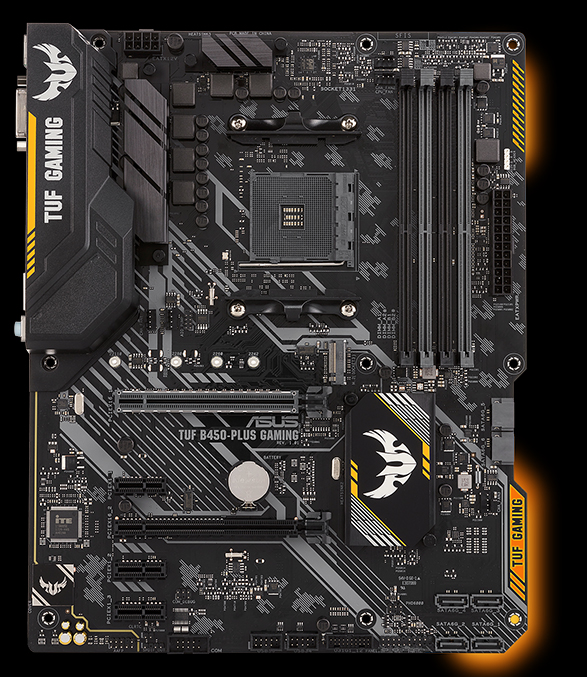
This motherboard is a very good starting motherboard, and is really easy to build off of. I personally do not have many bad things to say about this motherboard, it has good aesthetic, and is a really good motherboard for the price it is listed at ($109.99) on Newegg.

Some of the specs include: AM4 Socket

4 RAM Slots

6 SATA Connectors 

LAN: 10/100/1000 MBPS

List of all specs here

Everything about the motherboard aesthetically works just fine, the RGB looks nice, the motherboard itself looks clean, really nothing to complain about there. 

One thing I will say about the motherboard, it is pretty old, so newer CPU’s will not be compatible with it. If you are looking for a computer to play games on, I would go with a newer motherboard. However, if you are looking for a motherboard to start out at, this one works great!  

Note:  This review is part of a classroom project. 


https://www.newegg.com/