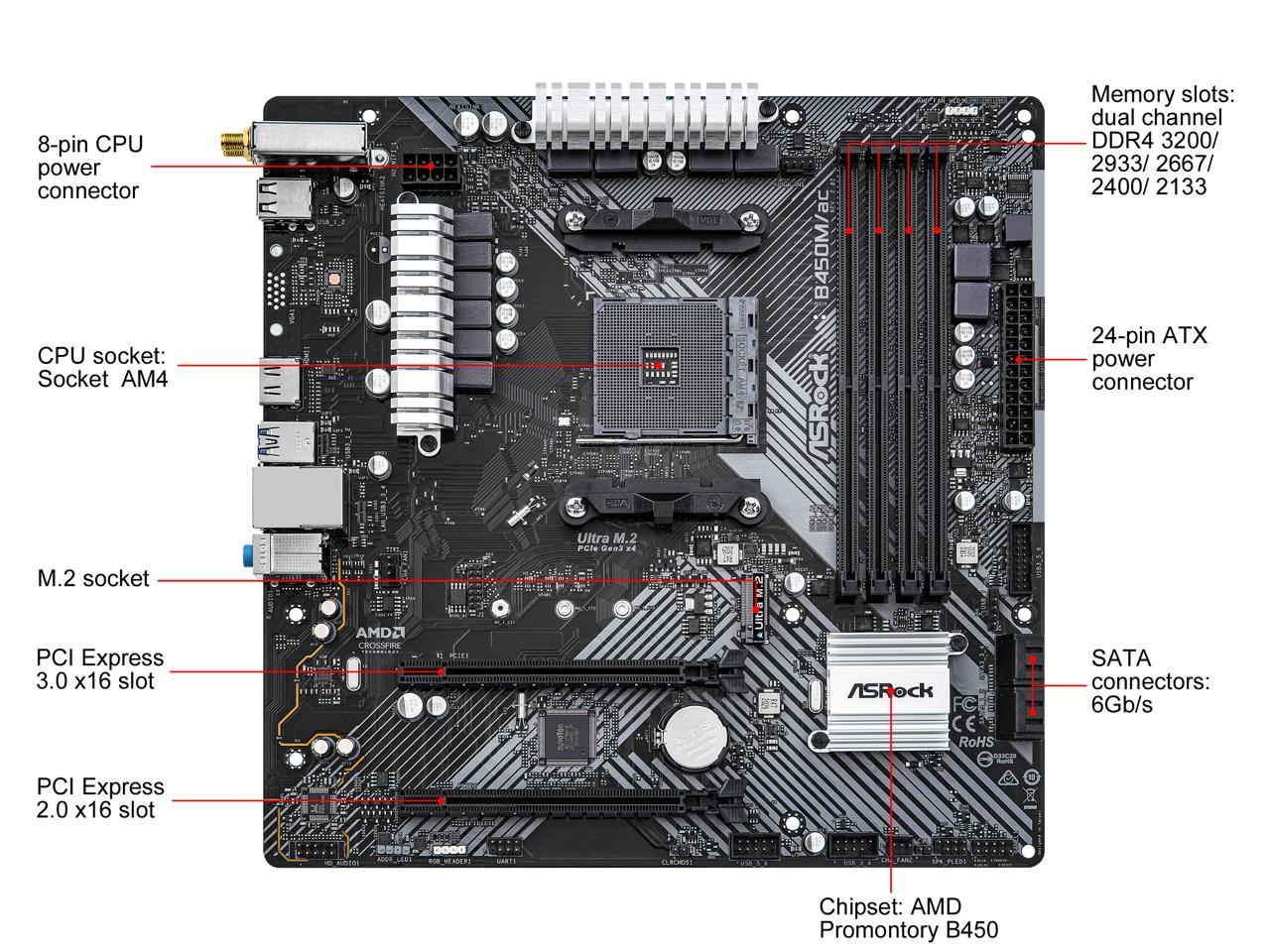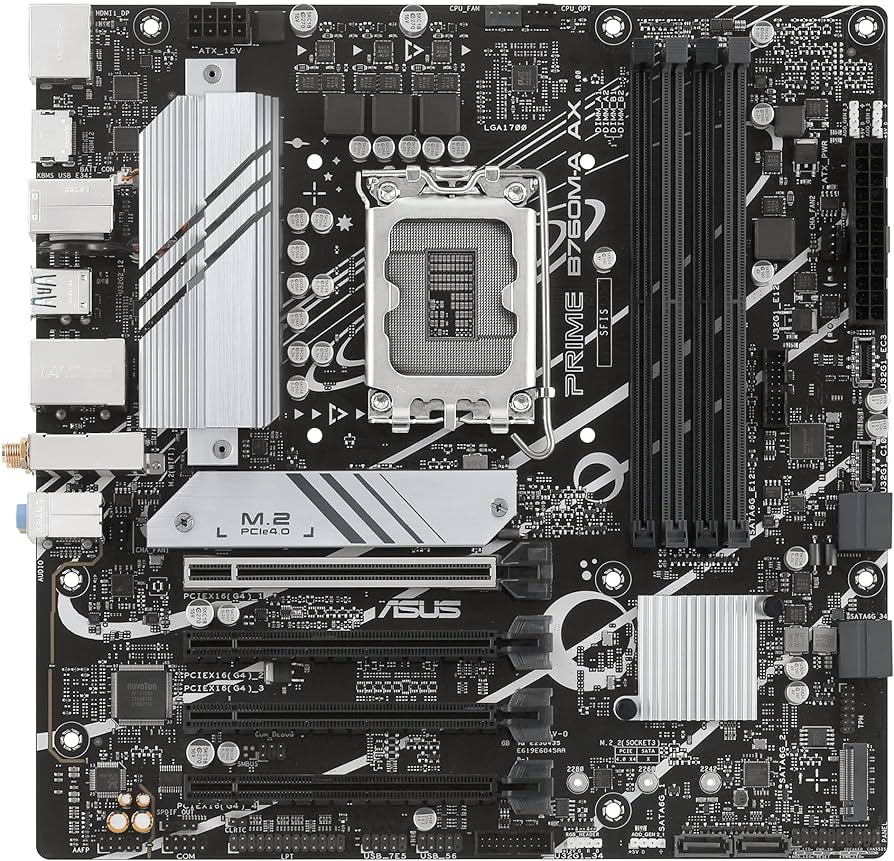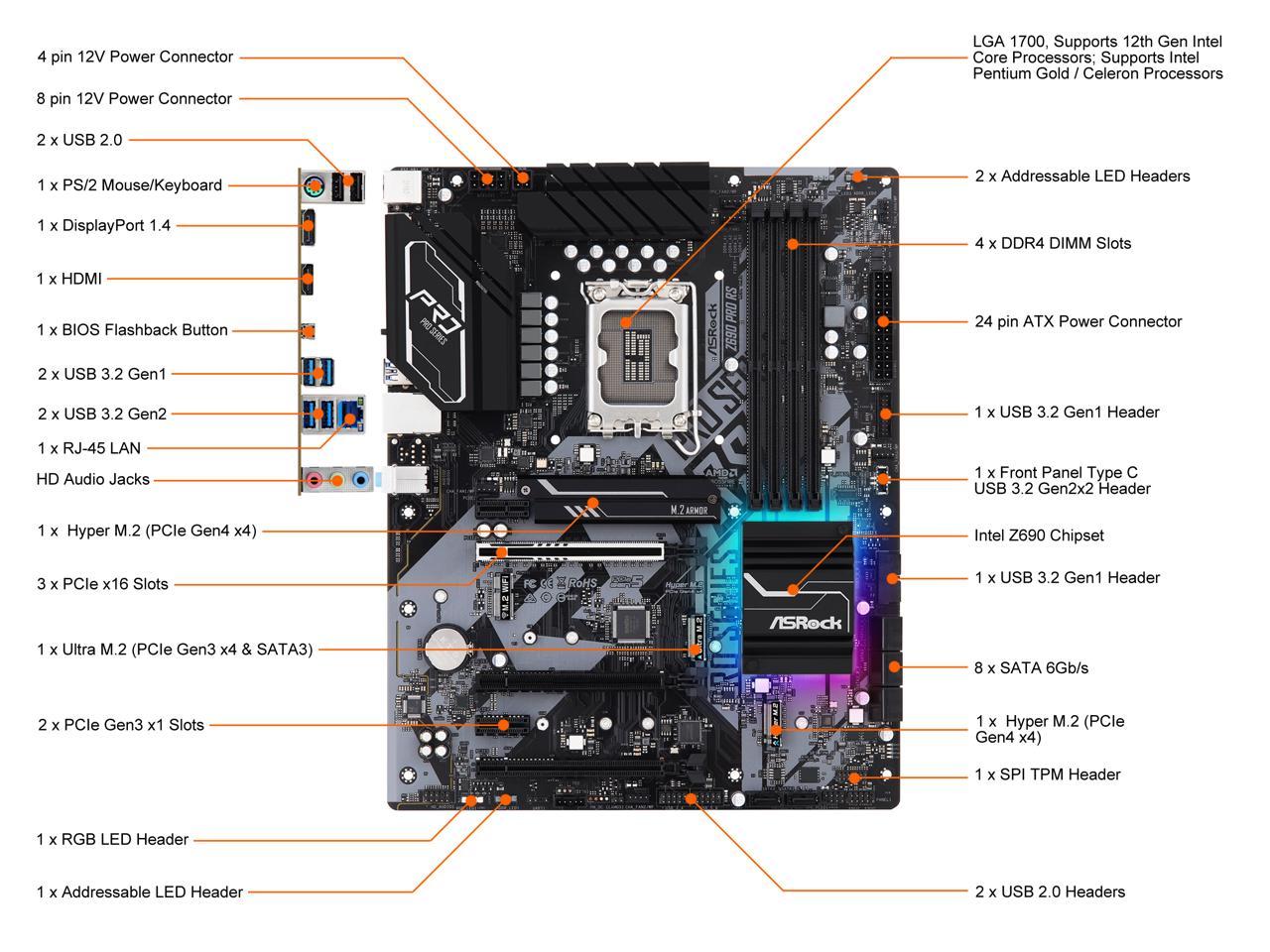
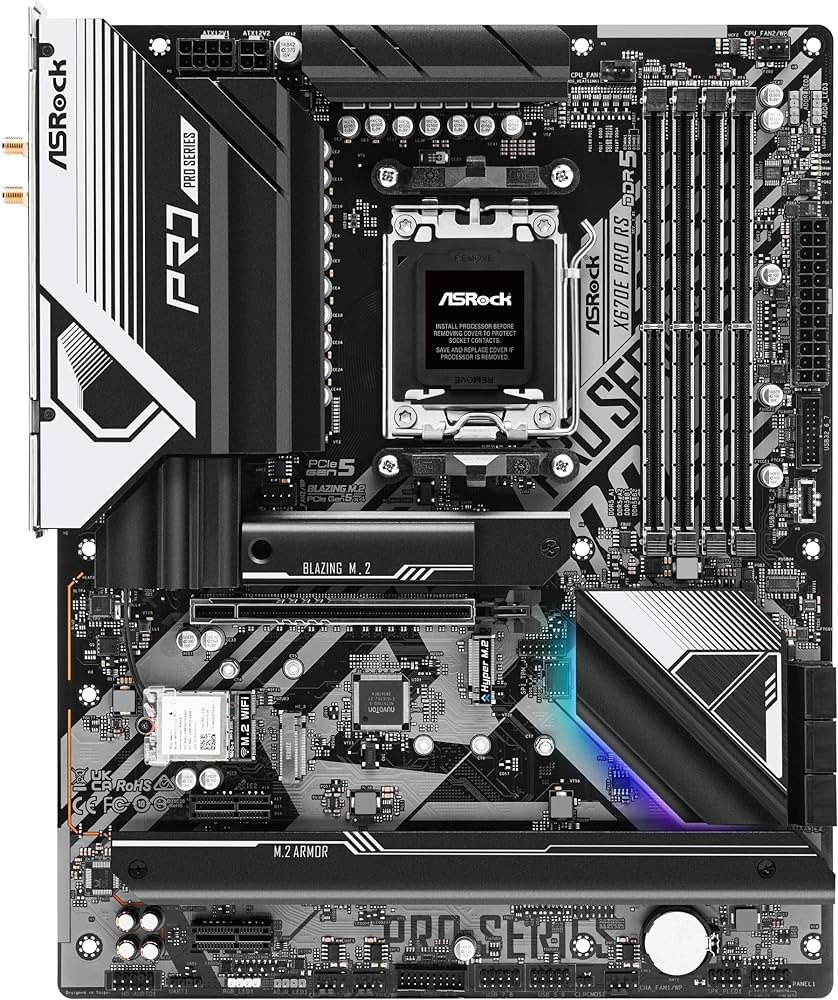
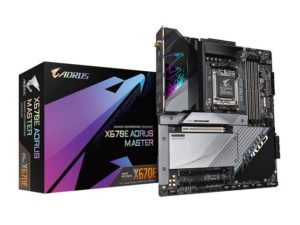
The Z690 Pro Intel Motherboard is produced by ASRock and it is awesome. This motherboard is $119.99 on NewEgg and is well worth the price. The motherboard looks amazing in a black and grey colorway, with a splash of blue and purple glowing lights. When I saw this motherboard it just stood out from the others and when I looked at the specifications I was blown away.
This Motherboard uses Intel’s 1700 CPU socket and can support the newest CPUs from a 12th-generation CPU to a 14th-generation CPU. The Motherboard looks great in my white PC case. The different contrast in colors makes it stand out.
The Motherboard comes with many functions to help you advance. The motherboard is good how it is or you can add different graphics to make your PC more of a gamer or a really nice home or work motherboard. Since I bought this motherboard I have been very happy with it. It allows me to do everything I need to. I can stick up to 4 sticks of ram into this motherboard adding up to the Max of 128GB.

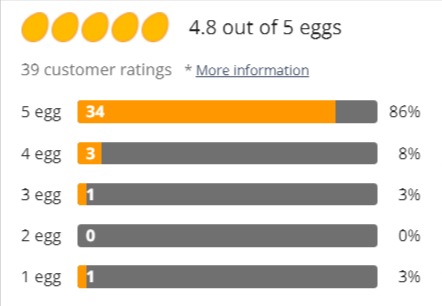
This Motherboard Has good reviews from people who have bought it. This Motherboard comes with integrated components which allows you to get started faster on your build to using your computer. Instead of waiting to use your motherboard till you have bought a graphics card, you could get this motherboard that comes with onboard graphics.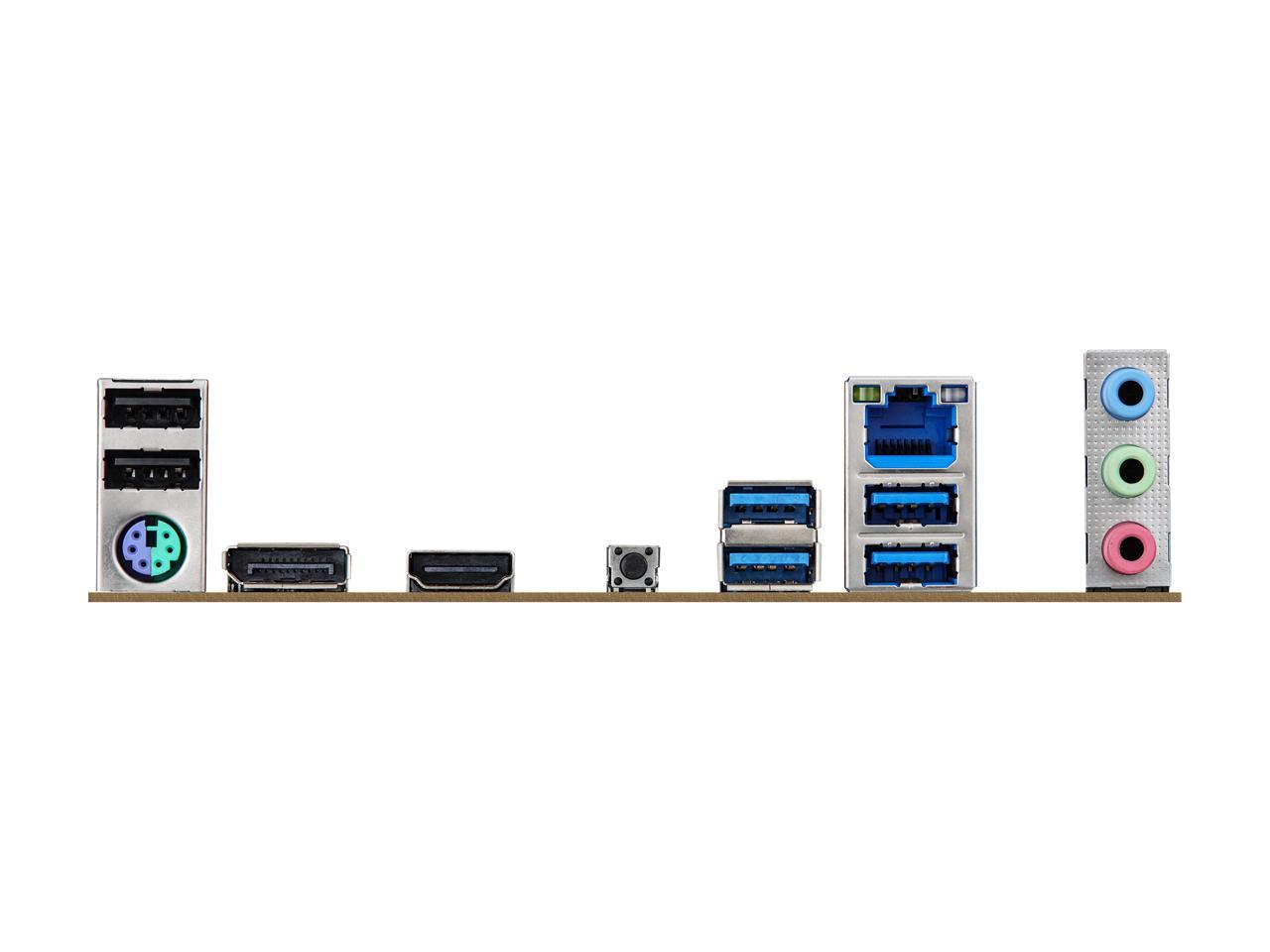
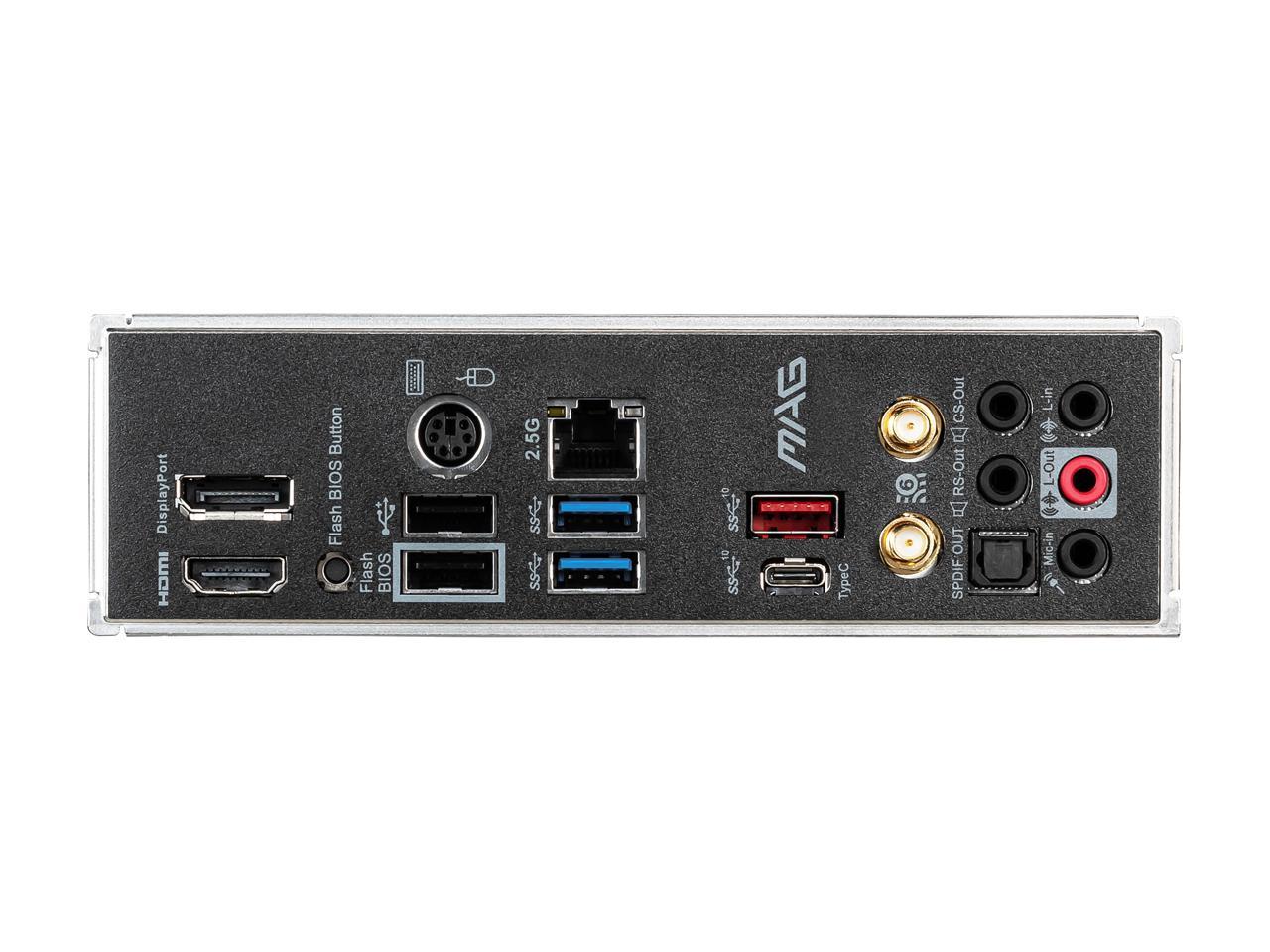
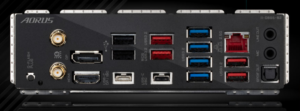
This Motherboard has 6 of USBs for your accessories that you will plug into your PC. you will have 7.1 channels of freaking audio to give you the ability to use whatever sound system that you desire.
Resources:
ASRock Z690 Pro RS. www.asrock.com/MB/Intel/Z690%20Pro%20RS/index.us.asp#Specification.
https://www.newegg.com/p/N82E16813162039
Note: This review is part of a classroom project.



 el
el